何が起こったか
システムのアップデートをしたらHyprlandの更新が入ってバージョンが0.53.0になると、いくつかの変更があって、それまでのwindowruleの構文がオーバーホールされたことで、DankMaterialShellを更新してもエラーが出たままだという場合に、Hyprlandの設定をどう変更したら良いかについてを書きます。
旧構文のwindowrulev2キーワードが非推奨となり設定を読み取っているパーサーが無効な構文として扱ってしまっていて、画面上部にエラーを出します。現状を維持する場合これらを解消するためにはhyprland.conf(~/.config/hypr/)を修正する必要があります。
現状でどこをどういうふうに変更していたか、と言うのは重要です。hyprland.confはセーブしたら即反映されるので、変更しながら不足していたものは追加していけばよいですが、これまでにカスタマイズしていた部分を把握していれば、以下のデフォルトの記述を元にして追加するのが早いのではなかろうかと。
念の為の新規インストールとアップデートの方法
DMSの新規インストール
ターミナルに次のコマンドを貼り付けると自動でインストーラーが起動します。
curl -fsSL https://install.danklinux.com | sh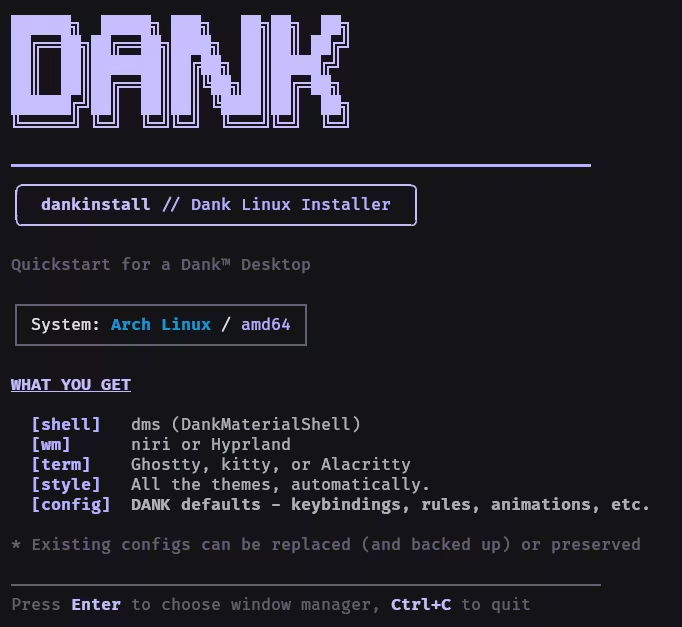
このインストーラーでは、画像にあるように、
- shell: DankMaterialShell がインストールされます
- wm: Windowマネージャーに、niri か Hyprland いずれかを選択してインストールできます
- term: ターミナルにGhostty、kitty、Alacritty がインストールされます
- styles: インストールされたターミナルのテーマが自動でインストールされます
- config: デフォルトのキーバインドやウィンドウルール、アニメーション等が適用された設定がインストールされます
DMSのアップデート方法
■ Arch系
paru -Syu dms-shell-binもしくは、paru -Syu dms-shell-gitでもできます。paruで書かれていますが、yayでも可能です。paru、yayは事前に導入されている必要があります。-binの方が安定版で、-gitの方が最新版です。
■ Fedora
sudo dnf upgrade dms■ Debian & Ubuntuでは
sudo apt update && sudo apt upgrade dms■ OpenSUSE
sudo zypper refresh && sudo zypper update dms他にもありますが、これらでアップデートした後は、
dms restartで、全体をリスタートさせます。(ログインセッションは維持したままで、再起動するわけではありません)。これらの詳細はService Managementに記載があります。
config
構造は次のようになっています。hyprland.confにbind.conf等の内容が書かれていましたが、現行のDMSの設定では分割して書かれています。
# skip-copy
.config/
  ┗ hypr/
    ┣ hyprland.conf
    ┣ dms/
      ┣ colors.conf
      ┣ outputs.conf
      ┣ layout.conf
      ┣ cursor.conf
┗ bind.conf以下で記載しているconfの内容は、公式Githubのデフォルトのものです。
hyprland.conf
# Hyprland Configuration
# https://wiki.hypr.land/Configuring/

# ==================
# MONITOR CONFIG
# ==================
# monitor = eDP-2, 2560x1600@239.998993, 2560x0, 1, vrr, 1
monitor = , preferred,auto,auto

# ==================
# STARTUP APPS
# ==================
exec-once = dbus-update-activation-environment --systemd --all
exec-once = systemctl --user start hyprland-session.target

# ==================
# INPUT CONFIG
# ==================
input {
    kb_layout = us
    numlock_by_default = true
}

# ==================
# GENERAL LAYOUT
# ==================
general {
    gaps_in = 5
    gaps_out = 5
    border_size = 2

    layout = dwindle
}

# ==================
# DECORATION
# ==================
decoration {
    rounding = 12

    active_opacity = 1.0
    inactive_opacity = 1.0

    shadow {
        enabled = true
        range = 30
        render_power = 5
        offset = 0 5
        color = rgba(00000070)
    }
}

# ==================
# ANIMATIONS
# ==================
animations {
    enabled = true

    animation = windowsIn, 1, 3, default
    animation = windowsOut, 1, 3, default
    animation = workspaces, 1, 5, default
    animation = windowsMove, 1, 4, default
    animation = fade, 1, 3, default
    animation = border, 1, 3, default
}

# ==================
# LAYOUTS
# ==================
dwindle {
    preserve_split = true
}

master {
    mfact = 0.5
}

# ==================
# MISC
# ==================
misc {
    disable_hyprland_logo = true
    disable_splash_rendering = true
}

# ==================
# WINDOW RULES
# ==================
windowrule = tile on, match:class ^(org\.wezfurlong\.wezterm)$

windowrule = rounding 12, match:class ^(org\.gnome\.)

windowrule = tile on, match:class ^(gnome-control-center)$
windowrule = tile on, match:class ^(pavucontrol)$
windowrule = tile on, match:class ^(nm-connection-editor)$

windowrule = float on, match:class ^(gnome-calculator)$
windowrule = float on, match:class ^(galculator)$
windowrule = float on, match:class ^(blueman-manager)$
windowrule = float on, match:class ^(org\.gnome\.Nautilus)$
windowrule = float on, match:class ^(steam)$
windowrule = float on, match:class ^(xdg-desktop-portal)$

windowrule = float on, match:class ^(firefox)$, match:title ^(Picture-in-Picture)$
windowrule = float on, match:class ^(zoom)$

# DMS windows floating by default
# ! Hyprland doesn't size these windows correctly so disabling by default here
# windowrule = float on, match:class ^(org.quickshell)$

layerrule = no_anim on, match:namespace ^(quickshell)$

source = ./dms/colors.conf
source = ./dms/outputs.conf
source = ./dms/layout.conf
source = ./dms/cursor.conf
source = ./dms/binds.conf
hyprland.confの修正
最初辺りにある、モニターの設定で、monitor = , preferred,auto,autoの部分を私はthinkpad T470sを使用しているので、monitor = , preferred,auto,1に変更しています。こうすることで解像度が正しくなると思います。SUPER + ,でGUI設定が開くので、まだベータ版らしいですが表示→Configrationを開くとモニター設定ができるのでここで設定したものはoutputs.confあたりに書き出されると思います。
更にキーボードの設定で、kb_layout = usを日本語に変更します。
input {
    kb_layout = jp
    numlock_by_default = true
}
次のようにも書けます
# skip-copy
windowrule = float on, match:class ^(gnome-calculator)$
windowrule = float on, match:class ^(galculator)$
windowrule = float on, match:class ^(blueman-manager)$
windowrule = float on, match:class ^(org\.gnome\.Nautilus)$
windowrule = float on, match:class ^(steam)$
windowrule = float on, match:class ^(xdg-desktop-portal)$
は、
windowrule {
  name = float
  match:class = ^(gnome-calculator)$
  match:class = ^(galculator)$
  match:class = ^(blueman-manager)$
  match:class = ^(org\.gnome\.Nautilus)$
  match:class = ^(steam)$
  match:class = ^(xdg-desktop-portal)$
  float = on
}つまり、float on, match:class ^(xdg-desktop-portal)$は、効果, match:条件という構文で、各行で、それぞれ書くこともできれば、効果をひとまとめにして書くこともできると言うことです。
これらはWindow Rulesに、使用できる項目がそれぞれ書いてあるので、自身で変更したりする場合は参照して下さい。
fcitx5を読み込ませる
日本語のIMEに当たるfcitx5ですが、既に導入している場合は、モニターの設定の下にあるSTARTUP APPSの最後に、
exec-once = fcitx5 -dと追記して下さい。-d(デーモンをバックグラウンドで実行する)だけで問題ないことがほとんどですが、まれに正しく動作しない環境があるかも知れないのでその場合は、
exec-once = fcitx5 -rdとして、既に動いているインスタンスがあればそれを殺してデーモンで起動するという感じです。文字で書くと「殺す」とか「デーモン」とか何事やと言う感じですが、そう言うことではないです。ものすごく丁寧に言うと、「既存の動作している(不具合を抱えた)インスタンスを破棄してからバックグラウンドプロセスとしてfcitx5を新規に開始する」という事です。
デーモン、バックグラウンド プロセスと言うのはWindowsではサービスと言います。だいたい同じようなもんです。日本語で言うと、メモリ上に常駐して必要な時に必要なプログラムを起動させるような感じです。日本語入力のキーが押されたらfcitx5を準備して日本語が入力できるようにするそういう感じのものです。
exec-onceとは、Hyprlandが起動した時に1度だけ実行するという事です。既に何か起動していた場合は終了させて1度だけ新たに起動させます。Windowsではスタートアップに登録するというようなことです。fcitx5 -dと書くだけでできるわけですからスタートアップディレクトリがどこかとか探さなくても済む分簡単でしょう?
bind.conf
DMSのデフォルトのbind.confです。SUPER + Xで電源オプションのメニューが出るようになったのはとてもわかりやすいと思います。
# === Application Launchers ===
bind = SUPER, T, exec,
bind = SUPER, space, exec, dms ipc call spotlight toggle
bind = SUPER, V, exec, dms ipc call clipboard toggle
bind = SUPER, M, exec, dms ipc call processlist focusOrToggle
bind = SUPER, comma, exec, dms ipc call settings focusOrToggle
bind = SUPER, N, exec, dms ipc call notifications toggle
bind = SUPER SHIFT, N, exec, dms ipc call notepad toggle
bind = SUPER, Y, exec, dms ipc call dankdash wallpaper
bind = SUPER, TAB, exec, dms ipc call hypr toggleOverview
bind = SUPER, X, exec, dms ipc call powermenu toggle

# === Cheat sheet
bind = SUPER SHIFT, Slash, exec, dms ipc call keybinds toggle hyprland

# === Security ===
bind = SUPER ALT, L, exec, dms ipc call lock lock
bind = SUPER SHIFT, E, exit
bind = CTRL ALT, Delete, exec, dms ipc call processlist focusOrToggle

# === Audio Controls ===
bindel = , XF86AudioRaiseVolume, exec, dms ipc call audio increment 3
bindel = , XF86AudioLowerVolume, exec, dms ipc call audio decrement 3
bindl = , XF86AudioMute, exec, dms ipc call audio mute
bindl = , XF86AudioMicMute, exec, dms ipc call audio micmute
bindl = , XF86AudioPause, exec, dms ipc call mpris playPause
bindl = , XF86AudioPlay, exec, dms ipc call mpris playPause
bindl = , XF86AudioPrev, exec, dms ipc call mpris previous
bindl = , XF86AudioNext, exec, dms ipc call mpris next

# === Brightness Controls ===
bindel = , XF86MonBrightnessUp, exec, dms ipc call brightness increment 5 ""
bindel = , XF86MonBrightnessDown, exec, dms ipc call brightness decrement 5 ""

# === Window Management ===
bind = SUPER, Q, killactive
bind = SUPER, F, fullscreen, 1
bind = SUPER SHIFT, F, fullscreen, 0
bind = SUPER SHIFT, T, togglefloating
bind = SUPER, W, togglegroup

# === Focus Navigation ===
bind = SUPER, left, movefocus, l
bind = SUPER, down, movefocus, d
bind = SUPER, up, movefocus, u
bind = SUPER, right, movefocus, r
bind = SUPER, H, movefocus, l
bind = SUPER, J, movefocus, d
bind = SUPER, K, movefocus, u
bind = SUPER, L, movefocus, r

# === Window Movement ===
bind = SUPER SHIFT, left, movewindow, l
bind = SUPER SHIFT, down, movewindow, d
bind = SUPER SHIFT, up, movewindow, u
bind = SUPER SHIFT, right, movewindow, r
bind = SUPER SHIFT, H, movewindow, l
bind = SUPER SHIFT, J, movewindow, d
bind = SUPER SHIFT, K, movewindow, u
bind = SUPER SHIFT, L, movewindow, r

# === Column Navigation ===
bind = SUPER, Home, focuswindow, first
bind = SUPER, End, focuswindow, last

# === Monitor Navigation ===
bind = SUPER CTRL, left, focusmonitor, l
bind = SUPER CTRL, right, focusmonitor, r
bind = SUPER CTRL, H, focusmonitor, l
bind = SUPER CTRL, J, focusmonitor, d
bind = SUPER CTRL, K, focusmonitor, u
bind = SUPER CTRL, L, focusmonitor, r

# === Move to Monitor ===
bind = SUPER SHIFT CTRL, left, movewindow, mon:l
bind = SUPER SHIFT CTRL, down, movewindow, mon:d
bind = SUPER SHIFT CTRL, up, movewindow, mon:u
bind = SUPER SHIFT CTRL, right, movewindow, mon:r
bind = SUPER SHIFT CTRL, H, movewindow, mon:l
bind = SUPER SHIFT CTRL, J, movewindow, mon:d
bind = SUPER SHIFT CTRL, K, movewindow, mon:u
bind = SUPER SHIFT CTRL, L, movewindow, mon:r

# === Workspace Navigation ===
bind = SUPER, Page_Down, workspace, e+1
bind = SUPER, Page_Up, workspace, e-1
bind = SUPER, U, workspace, e+1
bind = SUPER, I, workspace, e-1
bind = SUPER CTRL, down, movetoworkspace, e+1
bind = SUPER CTRL, up, movetoworkspace, e-1
bind = SUPER CTRL, U, movetoworkspace, e+1
bind = SUPER CTRL, I, movetoworkspace, e-1

# === Workspace Management ===
bind = CTRL SHIFT, R, exec, dms ipc call workspace-rename open

# === Move Workspaces ===
bind = SUPER SHIFT, Page_Down, movetoworkspace, e+1
bind = SUPER SHIFT, Page_Up, movetoworkspace, e-1
bind = SUPER SHIFT, U, movetoworkspace, e+1
bind = SUPER SHIFT, I, movetoworkspace, e-1

# === Mouse Wheel Navigation ===
bind = SUPER, mouse_down, workspace, e+1
bind = SUPER, mouse_up, workspace, e-1
bind = SUPER CTRL, mouse_down, movetoworkspace, e+1
bind = SUPER CTRL, mouse_up, movetoworkspace, e-1

# === Numbered Workspaces ===
bind = SUPER, 1, workspace, 1
bind = SUPER, 2, workspace, 2
bind = SUPER, 3, workspace, 3
bind = SUPER, 4, workspace, 4
bind = SUPER, 5, workspace, 5
bind = SUPER, 6, workspace, 6
bind = SUPER, 7, workspace, 7
bind = SUPER, 8, workspace, 8
bind = SUPER, 9, workspace, 9

# === Move to Numbered Workspaces ===
bind = SUPER SHIFT, 1, movetoworkspace, 1
bind = SUPER SHIFT, 2, movetoworkspace, 2
bind = SUPER SHIFT, 3, movetoworkspace, 3
bind = SUPER SHIFT, 4, movetoworkspace, 4
bind = SUPER SHIFT, 5, movetoworkspace, 5
bind = SUPER SHIFT, 6, movetoworkspace, 6
bind = SUPER SHIFT, 7, movetoworkspace, 7
bind = SUPER SHIFT, 8, movetoworkspace, 8
bind = SUPER SHIFT, 9, movetoworkspace, 9

# === Column Management ===
bind = SUPER, bracketleft, layoutmsg, preselect l
bind = SUPER, bracketright, layoutmsg, preselect r

# === Sizing & Layout ===
bind = SUPER, R, layoutmsg, togglesplit
bind = SUPER CTRL, F, resizeactive, exact 100%

# === Move/resize windows with mainMod + LMB/RMB and dragging ===
bindmd = SUPER, mouse:272, Move window, movewindow
bindmd = SUPER, mouse:273, Resize window, resizewindow

# === Move/resize windows with mainMod + LMB/RMB and dragging ===
bindd = SUPER, code:20, Expand window left, resizeactive, -100 0
bindd = SUPER, code:21, Shrink window left, resizeactive, 100 0

# === Manual Sizing ===
binde = SUPER, minus, resizeactive, -10% 0
binde = SUPER, equal, resizeactive, 10% 0
binde = SUPER SHIFT, minus, resizeactive, 0 -10%
binde = SUPER SHIFT, equal, resizeactive, 0 10%

# === Screenshots ===
bind = , Print, exec, dms screenshot
bind = CTRL, Print, exec, dms screenshot full
bind = ALT, Print, exec, dms screenshot window

# === System Controls ===
bind = SUPER SHIFT, P, dpms, toggle
bind.confに修正・追加
個人的な設定ですが、# === Application Launchers ===の下に、{{TERMINAL_COMMAND}}と言う部分があります。私はGhosttyを使用しているので決め打ちで書いています。
# === Application Launchers ===
bind = SUPER, T, exec, ghostty
もしオプションを付けたい場合は、
bind = SUPER, T, exec, ghostty --fullscreenあるいは、
bind = SUPER, T, exec, ghostty -e tmuxこれはどこかで説明したかも知れませんが、-eがtmuxも実行するというような意味です。tmuxはターミナルを画面分割できるマルチプレクサです。もちろん予め導入しておく必要があります。
もしflatpak版のBraveを使用している場合は、braveだけでは起動しないかも知れないので(するんじゃないかもと思いますが)、
bind = SUPER, B, exec, flatpak run com.brave.Browserと書く必要があるかも知れません。他のflatpakのパッケージを利用して、何かしらのバインドを作る際には仕組みとしてはこういうことだと覚えておいて下さい。これらはflathubの各パッケージ(例: Brave)の「インストール」ボタンの右側にある下向きの三角に起動方法が書いてあるかと思うのでそれぞれ確認して下さい。
他には、ファイルマネージャーとブラウザはあると便利なので、bind = SUPER, X, exec, dms ipc call powermenu toggleの下に、SUPER + Bでfirefoxが起動し、SUPER + Eでthunarが起動します。これらはそれぞれに好みのものを登録するだけです。
bind = SUPER, B, exec, firefox
bind = SUPER, E, exec, thunar
その他のファイル
既にデフォルトでdms/ディレクトリにcolors.conf、layout.confなど存在するものもあるかと思いますが、hyprland.confの一番下に書いてある部分の、
# skip-copy
source = ./dms/colors.conf
source = ./dms/outputs.conf
source = ./dms/layout.conf
source = ./dms/cursor.conf
source = ./dms/binds.confで無いものに関しては、ファイル名を同じにした空ファイルがdmsディレクトリにあれば大丈夫です。ファイルがない場合はエラーが画面上部に表示されると思います。cursor.confは何も書いてないファイルだけをdmsに作って、SUPER + ,の設定から「テーマおよびカラー」の中にある「カーソルテーマ」の部分で、システムデフォルトからAdwaitaに変更したらそれらが書き出されます。おそらくは何もなしで大丈夫という判断はここからです。
colors.conf
コメント部分1行目にあるように、
# ! Auto-generated file. Do not edit directly.
# Remove source = ./dms/colors.conf from your config to override.

$primary  = rgb(d0bcff)
$outline  = rgb(948f99)
$error    = rgb(f2b8b5)

general {
  col.active_border   = $primary
  col.inactive_border = $outline
}

group {
  col.border_active   = $primary
  col.border_inactive = $outline
  col.border_locked_active   = $error
  col.border_locked_inactive = $outline

  groupbar {
    col.active         = $primary
    col.inactive       = $outline
    col.locked_active   = $error
    col.locked_inactive = $outline
  }
}
layout.conf
コメント部分1行目にあるように、
# Auto-generated by DMS - do not edit manually

general {
    gaps_in = 4
    gaps_out = 4
    border_size = 2
}

decoration {
    rounding = 12
}
まとめ
hyprland.conf自体は大きく変わりましたが、変更する部分は少ないと思います。色々と追加修正などもできると思いますが、デフォルトが優秀なので大きく変更する必要はありません。
Hyprlandはかなり高頻度で更新されているプロジェクトなので、更新があるたびというわけではないものの結構変更する機会が出てきます。なのでHyprlandを使用する場合、Hyprland公式はブックマークしておいて損はないです。
Dank Material Shellは、HyprlandだけではなくNiriにも対応しています。~/.config/niri/dms/の中のbinds.kdlの修正が必要です。
あまり使用していないようであれば、新規インストールすればそれまでにカスタマイズしていた元々のconfigファイルはバックアップされるので、追記していたもの(キーレイアウトやモニター解像度、キーバインドでブラウザなどの起動キーの組み合わせ)などを書き換えれば元通り使用できます。
config(kdl)ファイルは上記作業をして保存したら即適用されますが、ターミナルからdms restartとして全体の設定の再起動をします(ログアウトはしません)。
Dank Material Shellはシステムチェックもできます。windowsキー + ,で設定画面を出し、一番下の「詳細」の中にあるシステムチェックをすれば何に問題があるか、それらの情報に対してのリンクがあるのでクリックするとブラウザで公式サイトの該当ページ飛びます。